How to Create a GST Invoice Online — Free, No Signup (2026 Guide)
Creating a GST invoice online should not need an accounting degree, a paid subscription, or even a signup form. In this guide we walk through the exact steps to build a GST-compliant invoice on Free Invoice Generator, explain when CGST and SGST split applies versus IGST, and show you how to get a clean, print-ready A4 PDF at the end. The whole flow genuinely takes about two minutes once your details are in.
What makes an invoice "GST compliant"?
Under Indian GST rules, a tax invoice needs a specific set of fields. Miss one and your buyer may have trouble claiming input tax credit. Here is the practical checklist we built the editor around:
- Your details: legal business name, address, and GSTIN
- Invoice number and date: a unique, sequential number (the app locks used numbers so you never issue duplicates)
- Buyer details: name, address, and GSTIN if they are registered
- Place of supply and the seller/buyer state — this decides which taxes apply
- Line items: description, HSN or SAC code, quantity, rate, and taxable value
- Tax breakup: CGST + SGST for same-state sales, IGST for inter-state
- Total in words — the app writes this automatically, paise included
- Signature or authorised signatory line
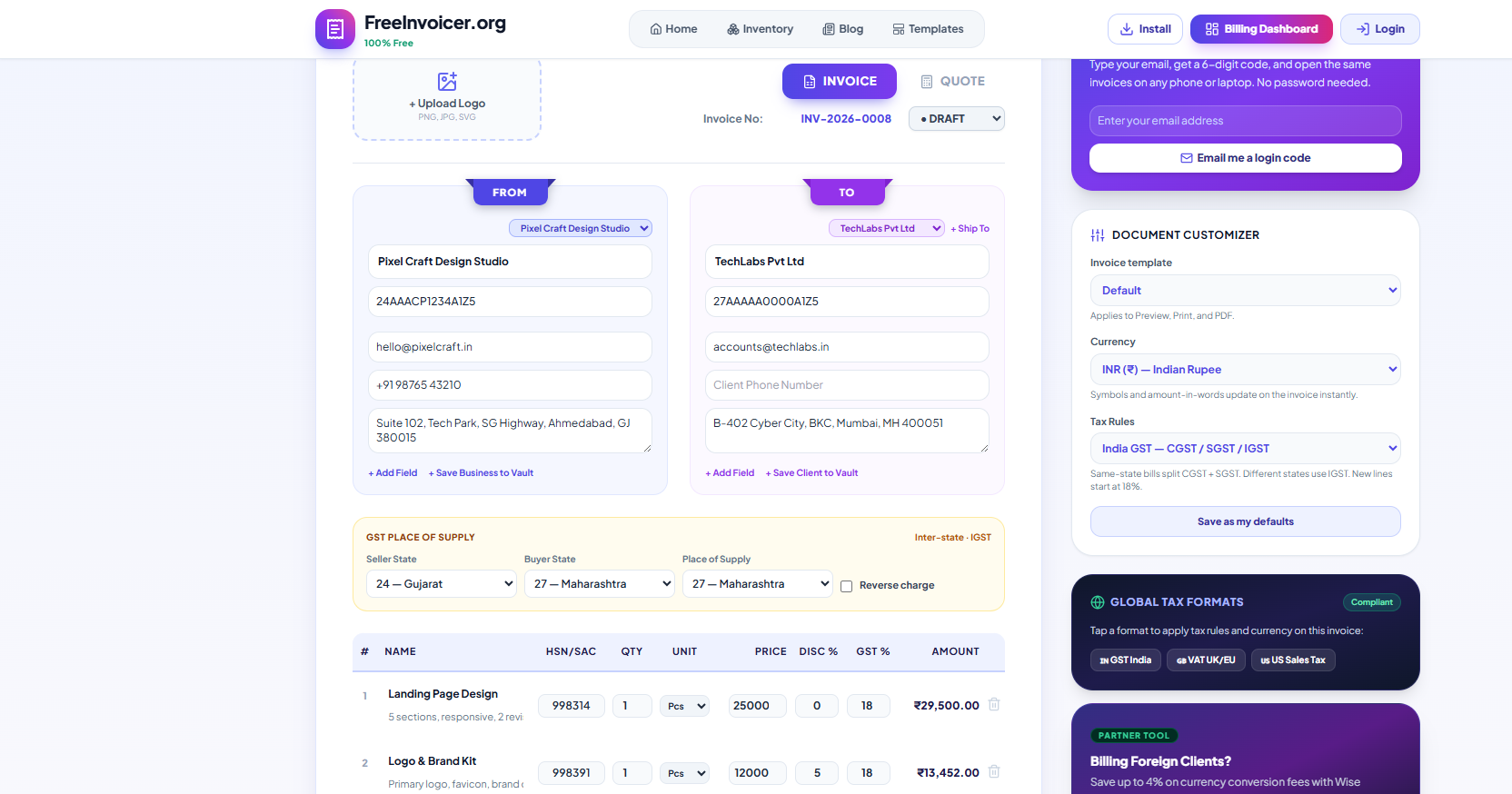
Step 1: Fill your business and client details
Open the invoice editor — it loads instantly, and there is no login wall. Type your business name, address, and GSTIN in the From box. Upload a logo if you want it on the final PDF; it sits next to your name on every template. Then fill the Bill To box with your client's details. If the shipping address is different, a separate Ship To address is one click away.
Everything you type is saved on your device automatically (roughly every second), so an accidental tab close does not eat your work. That is the local-first design doing its job quietly.
Step 2: Choose the GST supply type
This is the part people get wrong most often, so the editor makes it explicit. Pick the seller state and the place of supply, and the app decides the tax split for you:
| Scenario | Tax applied | Example |
|---|---|---|
| Same state (intra-state) | CGST + SGST, each half of the rate | Maharashtra seller → Maharashtra buyer: 18% becomes 9% + 9% |
| Different states (inter-state) | IGST, full rate | Maharashtra seller → Karnataka buyer: 18% IGST |
| Reverse charge | Buyer pays the tax | Tick Reverse Charge and the invoice states it clearly |
The invoice table columns change automatically — intra-state invoices show CGST and SGST columns with the split percentage under each amount, while inter-state invoices show a single IGST column. You never have to calculate the halves yourself.
Step 3: Add line items with HSN codes
Each line takes a description, quantity, unit (pieces, hours, months — your choice), rate, an optional discount percentage, and the GST rate. New lines start at 18% because that is the most common slab, but every line can carry its own rate — mix 5% goods with 18% services on one invoice without any workaround.
If you sell the same items repeatedly, save them once in the Inventory (top menu). Next time, insert the item and the description, HSN, rate, and tax fill themselves. We wrote more about that in the SKU and product codes guide.
Step 4: Preview, then print or download
Hit Preview and you see the exact A4 sheet your client will receive — same layout in Preview, Print, and PDF, down to the label underlines. The default template is a crisp black-and-white tax invoice; if you want colour, there are eight free templates including gradient and corporate designs. Switching templates never changes your data, only the look.
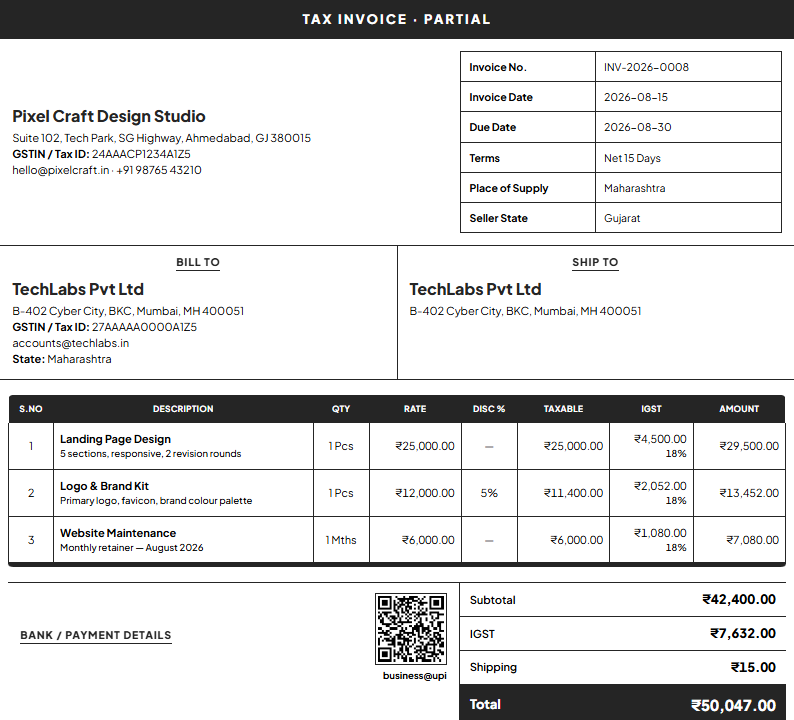
The final sheet includes the tax breakup per line, subtotal, CGST/SGST or IGST totals, the grand total, and the amount in words — "Sixteen Thousand Eight Hundred Thirteen Rupees and Eighty Eight Paise Only" style, generated for you. Add your UPI ID and a payment QR code prints right on the invoice, which noticeably speeds up payments (here is why).
Common GST invoicing mistakes to avoid
- Wrong supply type. Charging CGST+SGST on an inter-state sale is the classic error. Let the state fields decide it.
- Skipping HSN codes. Registered businesses above the turnover threshold must print them. Store codes on catalog items so they are never forgotten.
- Duplicate invoice numbers. The app locks a number once an invoice is saved or shared, so the next document auto-increments cleanly.
- Missing the amount in words. Small thing, but many clients' accounts teams bounce invoices without it. Ours is automatic.
- Editing a sent invoice. If value changed after sending, issue a credit note instead of rewriting history.
Do you need to register or pay anything?
No. The editor, all eight templates, GST logic, PDF download, and printing are free without an account. An optional email OTP login exists only for people who want the same invoices on multiple devices — it is genuinely optional, not a trial wall.
Frequently asked questions
Can I create a GST invoice without GST registration?
If you are not registered, you issue a regular invoice (a "bill of supply" style document) without charging GST — simply leave the GSTIN blank and set tax to 0%. Charging GST without a GSTIN is illegal, so unregistered sellers should never add tax lines. The moment you register, add your GSTIN in the profile and the same editor produces compliant tax invoices.
What about multiple GST rates on one invoice?
Completely fine and fully supported — each line item carries its own rate, and the totals section aggregates the tax correctly. A stationery shop billing 12% notebooks alongside 18% pens on one document needs no workaround.
Does the invoice work for exports or SEZ supplies?
Exports are zero-rated: set the tax to 0% and note the export/LUT declaration in the notes section. You can also bill in the buyer's currency — the editor supports 45+ currencies with correct formatting.
Quick answer: fill business + client details, set seller state and place of supply, add items with HSN and GST rate, then Preview → Download PDF. Done — a compliant GST invoice in about two minutes.
Next in this series: understand HSN and SAC codes in depth, or see how to send the finished invoice on WhatsApp with a public share link.